Label printing and visual label designer
Print scannable QR labels to Zebra, Brother QL, TSPL, CUPS/IPP, or local browser printers at any label size with the visual label designer.
Itemized renders printer-agnostic QR labels directly on the server and supports network thermal printers, CUPS/AirPrint printers, and local browser PDF printing—no companion print server required.
Adding a label printer
- Open Settings → Label Printing (Admin only).
- Under Label Printers, enter a Printer name and choose a printer type:
- Brother QL — QL-720NW / 810W / 820NWB (TCP :9100): Direct raster printing over your LAN (
192.168.1.50:9100). - CUPS / AirPrint / IPP Everywhere (IPP PDF): Works with AirPrint printers and USB thermal printers (DYMO, Rollo, Munbyn, Brother QL-800) shared via CUPS (
http://192.168.1.50:631/printers/my-label-printer). - Zebra / ZPL Compatible (Raw TCP :9100): Direct ZPL printing over TCP
:9100(192.168.1.50:9100). - Zebra ZSB Series (IPP ZPL): Direct IPP printing (
http://192.168.1.50:631/ipp/print). - Rollo / Munbyn / TSC / iDPRT (TSPL :9100): Direct TSPL2 printing to networked thermal printers (
192.168.1.50:9100). - Browser Print / PDF (Local Printer): No network endpoint needed; opens an exact-size single- or multi-page PDF (one label per page) in your browser for manual prints, bulk reprints, Purchase / Quick Add workflows, and automatic Open or freeze/thaw Transfer due-date reprints.
- Brother QL — QL-720NW / 810W / 820NWB (TCP :9100): Direct raster printing over your LAN (
- Choose a Label size (
Auto-detect...for IPP printers—which queries the loaded roll size automatically when you save—a preset such as2.25" × 1.25"or BrotherDK-1209 62 × 29 mm, or custom dimensions inmmorin), along with DPI (and Die-Cut / Continuous media type for Brother QL and TSPL printers). - Select Add Printer, then click Test Print to verify output.
Make sure your Base URL in Settings → General is set to your HTTPS address so printed QR codes encode the right URL.
Choosing a product label mode
Each product has a Label Mode controlling what prints automatically during Purchase (and when opening/freezing/thawing changes an item's due date):
- No automatic label (
none) - One label per item (
per_item) — unique/go/i/:idQR per physical unit - One product label (
per_product) — reusable/go/p/:idQR for the product
You can also reprint item, product, or location labels anytime from their detail pages.
Designing labels with the Visual Label Designer
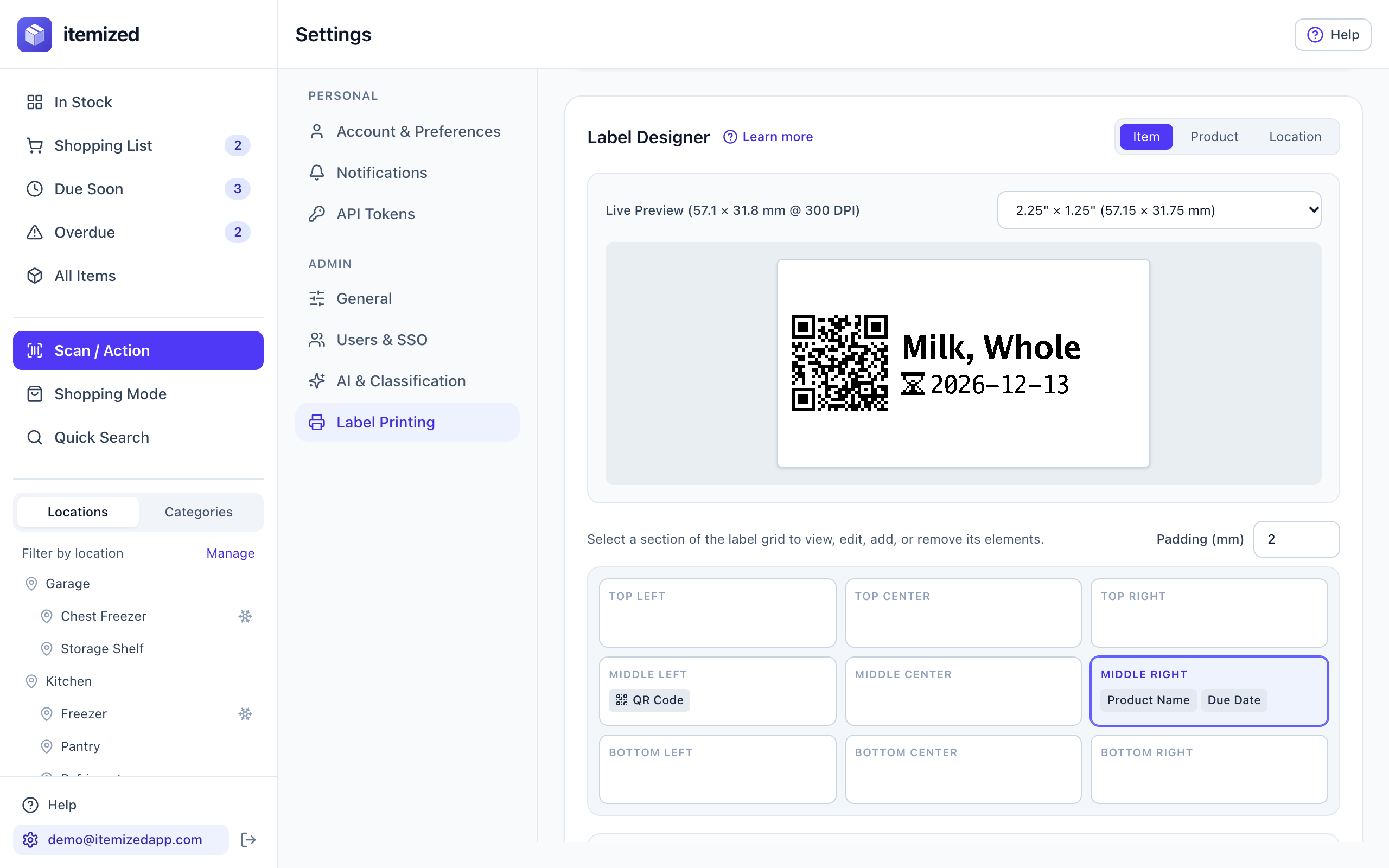
Under Settings → Label Printing → Label Designer, switch between item, product, and location templates:
- Place the optional QR Code and each field onto any position of the 3×3 anchor grid (
Top LeftthroughBottom Right). - Set independent text alignment (
Left,Center, orRight), font size, bold, and icons per field, and toggle or reorder fields as needed. - Use the Live Preview size switcher to see the exact rendered output for any configured printer or label size preset.
- Select Save Template to apply changes across all printers, or Reset to Default anytime to restore the built-in layout.