UPC lookup and AI classification
Automatically look up unknown retail barcodes via OpenFoodFacts and optionally normalize names with an LLM.
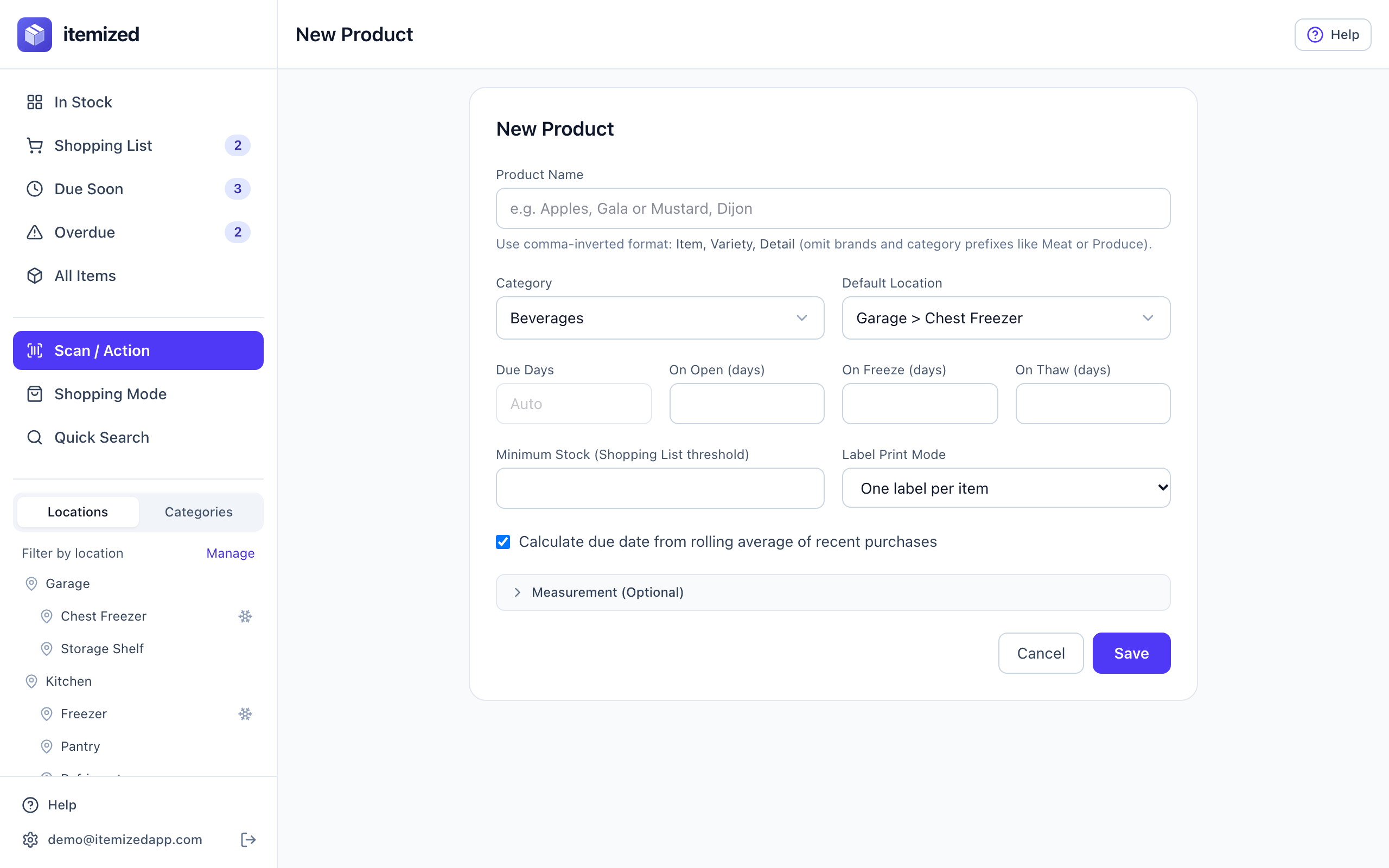
When you scan an unknown retail barcode in Purchase mode, itemized looks up the UPC/EAN via OpenFoodFacts and pre-fills the product details so you do not have to type everything by hand.
Configuring optional AI classification
Out of the box, OpenFoodFacts provides raw product titles and brands. To automatically normalize names into your Item, Variety, Detail style and suggest the best matching Category and Location:
- Open Settings → AI & Classification.
- Choose a provider: Anthropic, OpenAI, Gemini, or OpenAI-Compatible (Ollama).
- Enter the Model name, optional Base URL (for Ollama or self-hosted endpoints, such as
http://ollama:11434/v1), and API Key. - Select Save AI Settings.
You can also configure these via environment variables (LLM_PROVIDER, LLM_MODEL, LLM_BASE_URL, LLM_API_KEY). See the Configuration reference.
Bulk reclassifying existing products
When an LLM provider is configured:
- Select one or more products in the desktop inventory table.
- Click Reclassify in the floating bulk actions bar.
- Review the suggested standardized names in the Reclassify Products modal. Edit any target name, uncheck rows you want to skip, and check live Rename or Merge badges.
- Confirm to apply all selected changes in one batch.