Barcode scanning and workflows
Use your phone camera, native QR quick actions, or a USB/Bluetooth scanner to Purchase, Consume, Open, Transfer, and Audit stock.
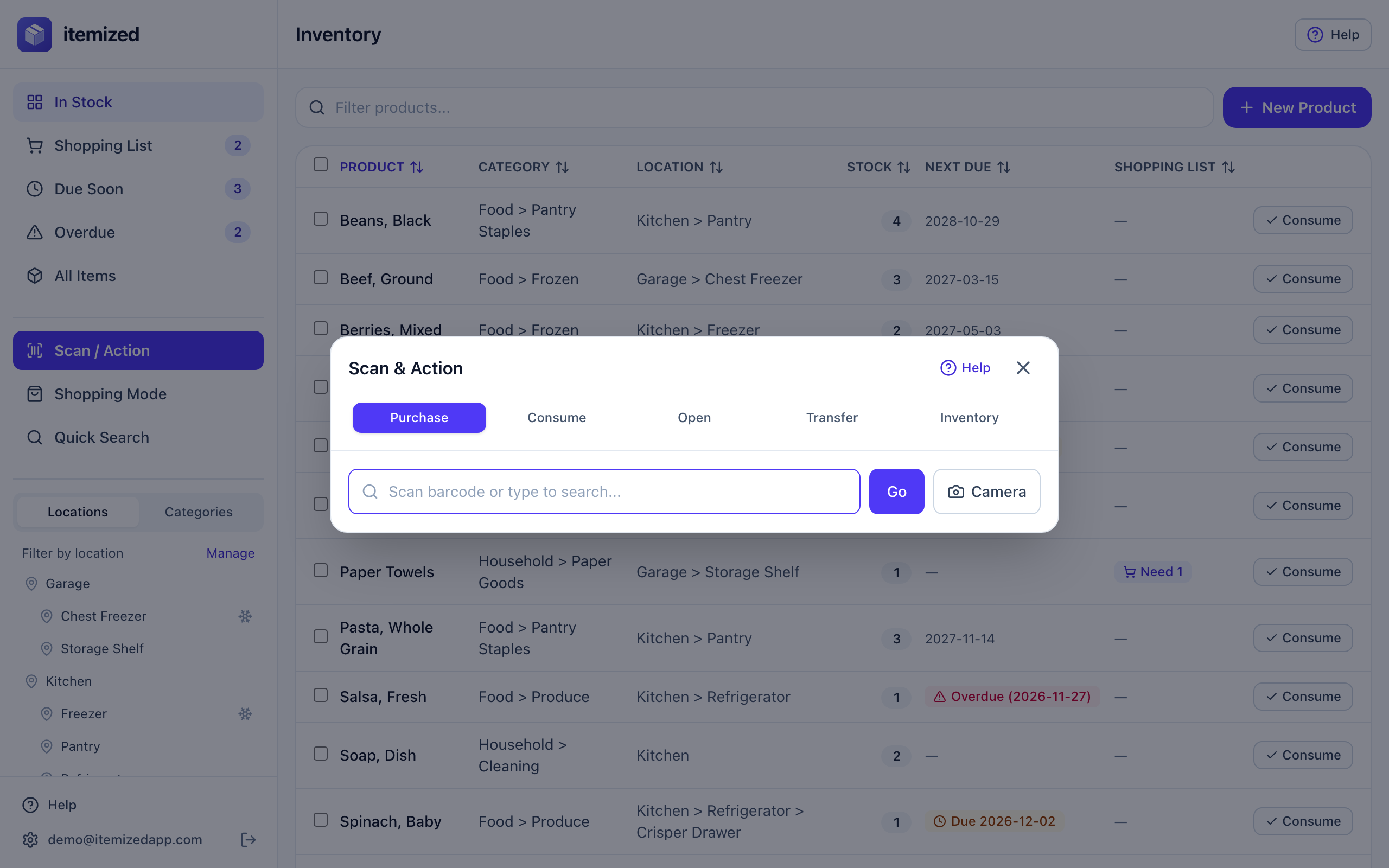
The Scan / Action drawer is the fastest way to update inventory using either your phone's camera or a USB/Bluetooth barcode scanner.
Supported barcodes
Itemized decodes retail barcodes (UPC-A, UPC-E, EAN-13, EAN-8) as well as itemized's own printed QR codes for items (/go/i/:id), products (/go/p/:id), and locations (/go/l/:id).
Scanning printed QR codes with your phone camera
Pointing your phone's native camera app at any printed itemized QR code opens a mobile-first QR Quick Action screen directly at /go/i/:id, /go/p/:id, or /go/l/:id—no need to open the scanner drawer first:
- Item QR (
/go/i/:id): One-tap Consume (with Undo), Open (applying Days After Opening with Undo), Transfer to another location, Shopping List toggle, or Restore / Unconsume if already consumed. - Product QR (
/go/p/:id): One-tap Consume Next (soonest-due unit, with Undo), per-item Consume / Open / Transfer, Quick Add (+1) restock, and Shopping List toggle. - Location QR (
/go/l/:id): Lists every in-stock item in that location (with quick filtering and clickable Sub-locations chips) so you can Consume, Open, or Transfer items directly from the shelf or freezer.
Five scanning workflows
Open Scan / Action from the sidebar or mobile bottom dock and select a mode:
- Purchase: Scan a retail barcode or product QR to add new in-stock items, pick quantity, location, due date, and optional label printing. Unknown retail barcodes automatically query OpenFoodFacts (see UPC lookup and AI classification).
- Consume: Scan an item QR or retail barcode to mark the soonest-due matching item as consumed.
- Open: Scan an item or product to mark it opened and apply its Days After Opening rule.
- Transfer: Scan a destination Location QR (or pick one), then scan items to move them there—automatically applying freeze or thaw due-date rules when moving into or out of a freezer.
- Inventory Audit: Scan a Location QR, then scan every item physically present in that location. Review the summary to reconcile missing or unexpected items in one step.
Using a USB or Bluetooth scanner
With Scan / Action open, focus the manual barcode field and scan. Most HID scanners type the barcode followed by Enter, which resolves immediately without touching the camera.