Shopping mode and store layouts
Shop together with shared store layouts, staged cart scanning, deferred batch label printing, and put-away transfers.
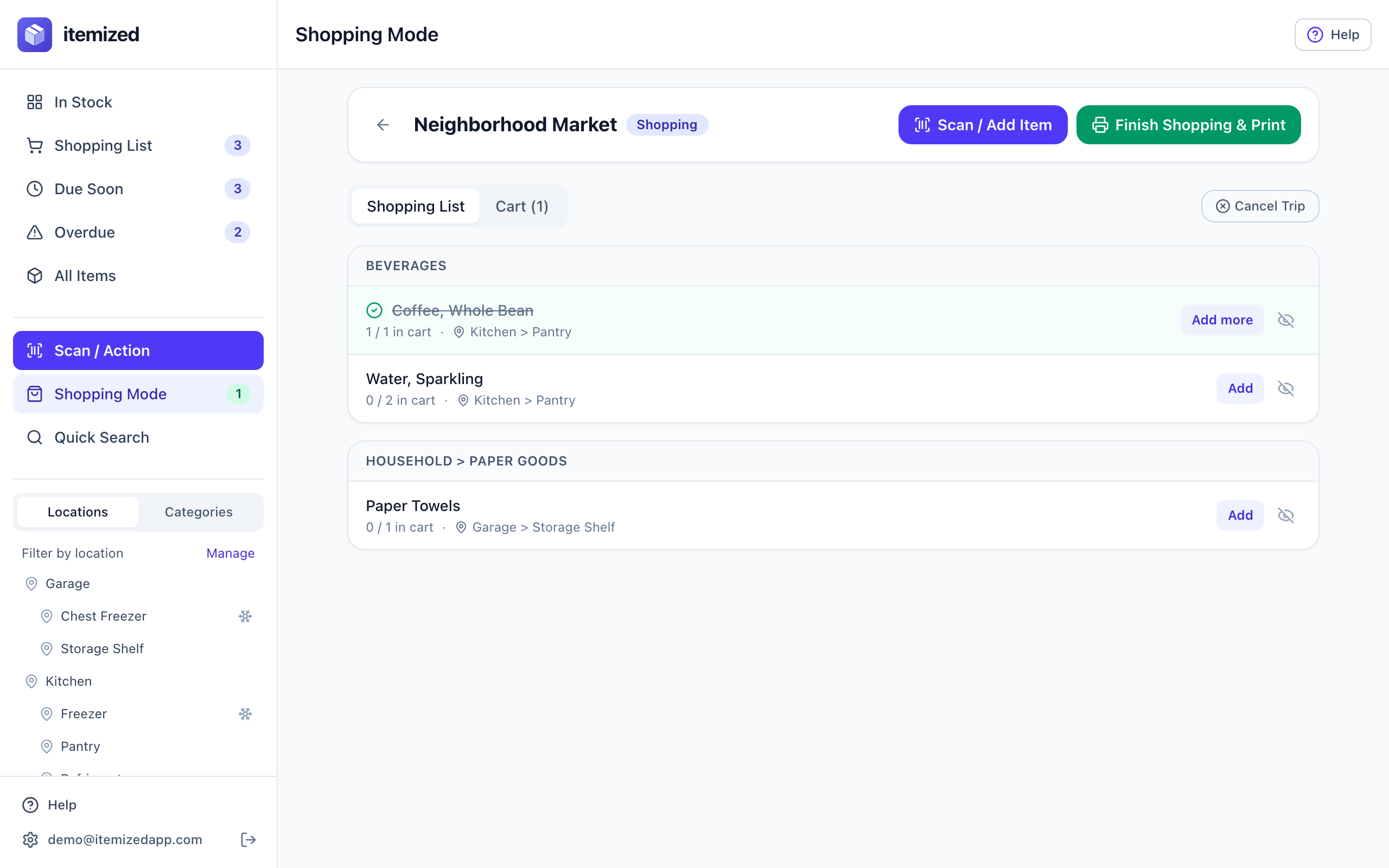
Itemized combines your shopping list, barcode purchasing, label printing, and storage put-away into a single synced Shopping Mode workflow.
Shared store layouts
Any household member can create or edit shared Store Layouts from Shopping Mode in the sidebar or via Start Shopping on the Shopping List view. Each layout defines:
- Category order matching the aisles of that store.
- Excluded categories you prefer to buy elsewhere (excluding a parent category automatically hides its subcategories).
- Automatic visibility for new categories, which appear at the bottom under Unordered so nothing is silently hidden.
Synced household trips
Selecting a store layout starts a new trip or automatically joins an active trip for that store—no session codes needed. All connected devices stay in sync in real time as household members dismiss items, add purchases to the cart, or put groceries away.
Shopping with a staged cart
While shopping, items are grouped by your store layout order:
- Progress tracking shows how many units are already in the cart compared to your needed minimum stock (for example,
1 / 3 in cart). - Dismiss hides an item for the current trip without removing it from your underlying Shopping List; open Dismissed for this trip at the bottom to restore it anytime.
- Scan Item or tap any row to stage a purchase in the cart without committing inventory or printing labels yet. Unknown barcodes can create a new catalog product on the spot.
- Going to freezer defaults to checked for freezer-default products and can be toggled upfront so freeze due dates are computed before labels print.
- Use the Cart tab to edit or remove staged items, or Cancel Trip to discard an uncommitted session cleanly.
Checkout, batch printing, and transfer mode
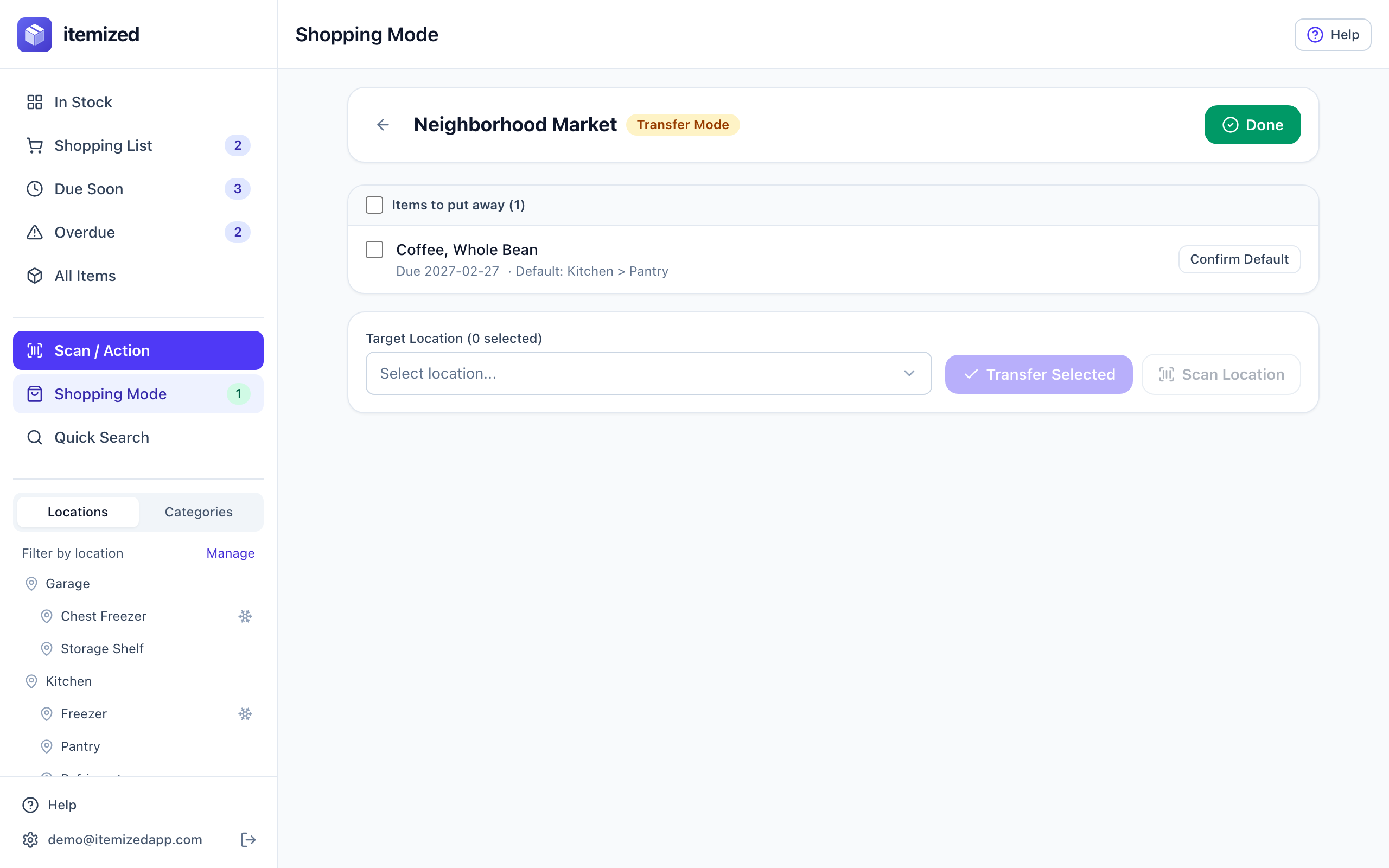
When you tap Finish Shopping & Print (or Finish Shopping when no label printer is enabled), itemized commits all staged items to inventory, clears manual shopping-list flags, prints labels in one batch (or opens a single consolidated PDF), and transitions into Transfer Mode.
In Transfer Mode, check one or more items and either Scan Location, choose a location from the picker, or tap Confirm Default. Transferred items clear from the list, and Shopping Mode exits automatically once all items are placed—or anytime you tap Done.