Variants and barcodes
Group brands and package sizes under one product, attach multiple barcodes, and merge duplicate products.
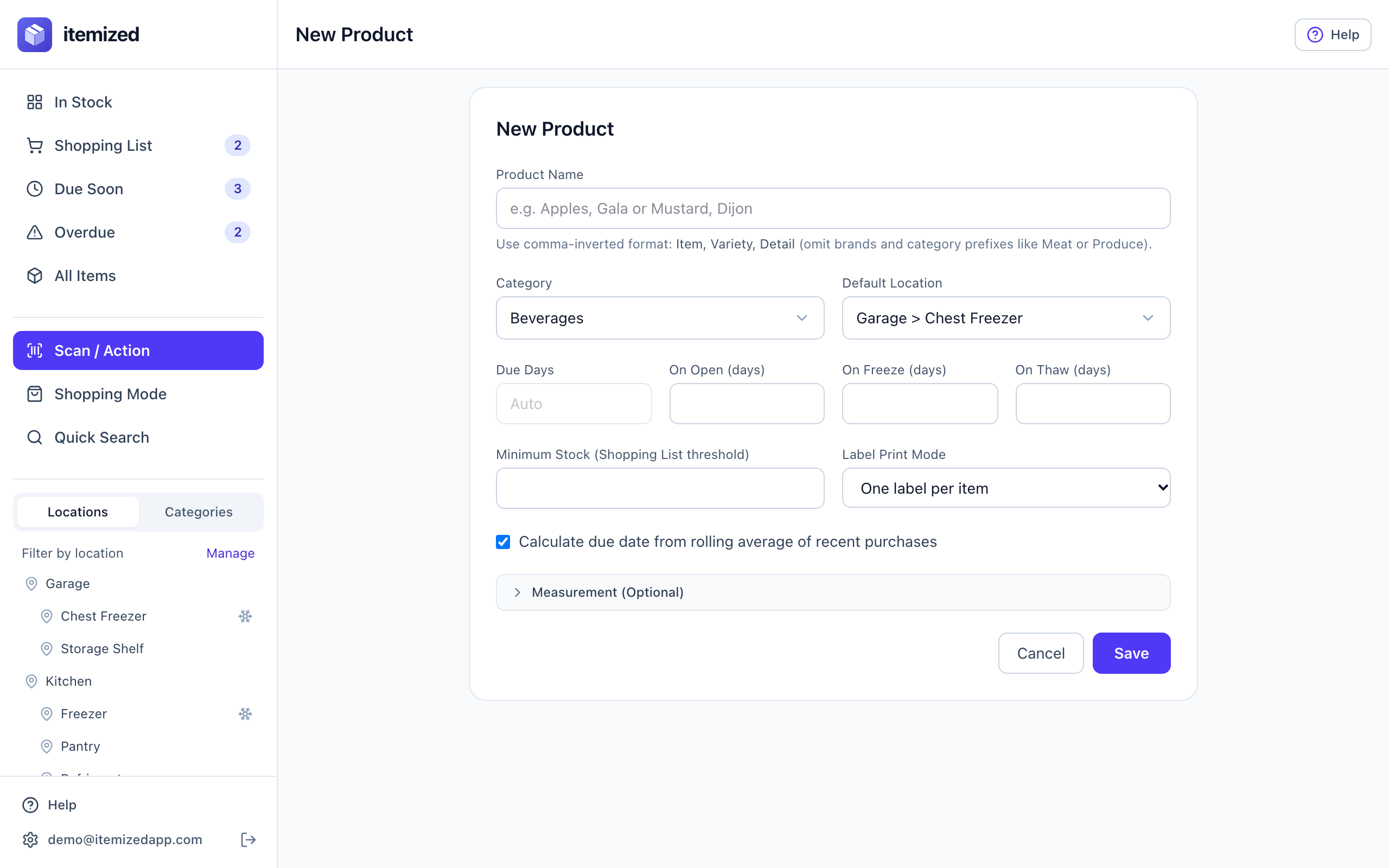
Products represent the generic household item you track (such as Tomatoes, Diced), while Variants represent specific brands or package sizes (such as Muir Glen 14.5 oz or Kirkland Organic 14.5 oz).
Adding variants and barcodes
- Open any product's detail page (
/products/:id). - Under Variants, add a variant name (brand, flavor, or size).
- Attach one or more retail UPC/EAN barcodes to that variant. When you scan any attached barcode in Scan / Action, itemized automatically selects both the product and the exact variant.
You can also assign or change the variant on existing in-stock items using the bulk selection bar on the Product detail page.
Merging duplicate products
If you accidentally created two products for the same item (for example, Black Beans and Beans, Black):
- On the desktop inventory table, select the checkboxes for two or more products.
- Click Merge in the floating bulk actions bar to open the Merge Products dialog.
- Choose the target product to keep and confirm.
Itemized moves all items, variants, and barcodes from the merged products into the target product without losing purchase history.